App Store Connect API Setup
Complete guide to obtaining App Store Connect API credentials so LaunchMaster Studio can read and publish your iOS app metadata.
Prerequisites
- Active Apple Developer Account with Admin or Account Holder role
- Access to App Store Connect
- Your app already created in App Store Connect
Open appstoreconnect.apple.com and sign in with your Apple developer credentials. Make sure you are using an account with Admin or Account Holder role — you will need elevated permissions to create API keys.
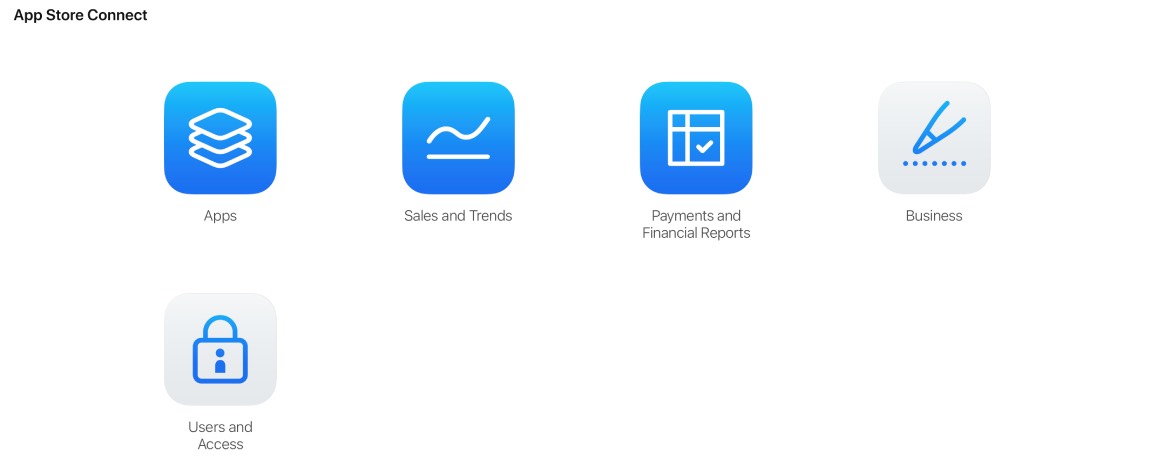
On the App Store Connect dashboard, click Users and Access in the top navigation. This is the central hub for managing roles and API keys.
Inside Users and Access, click the Integrations tab in the top navigation. Then select App Store Connect API from the sidebar on the left. You'll see a list of any previously created API keys here.
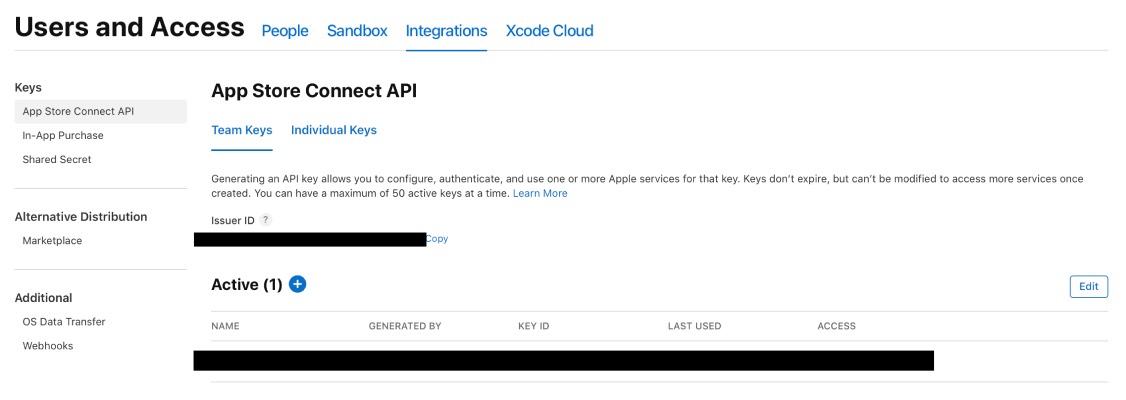
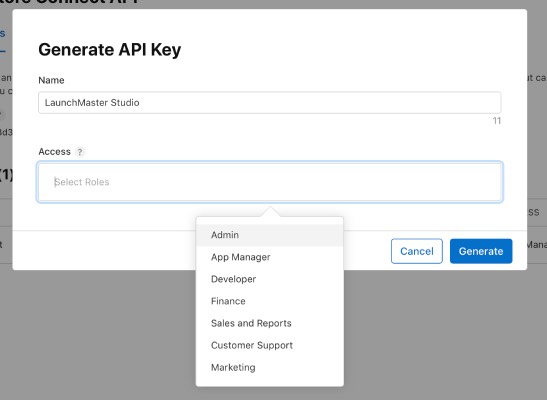
Click the + button (or Generate API Key if no keys exist yet). In the dialog that appears:
- Enter a descriptive Name — e.g.,
LaunchMaster Studio - Set Access to Admin (recommended) or App Manager
Click Generate to create the key.
After the key is generated, you will see three pieces of information you need to copy into LaunchMaster Studio:
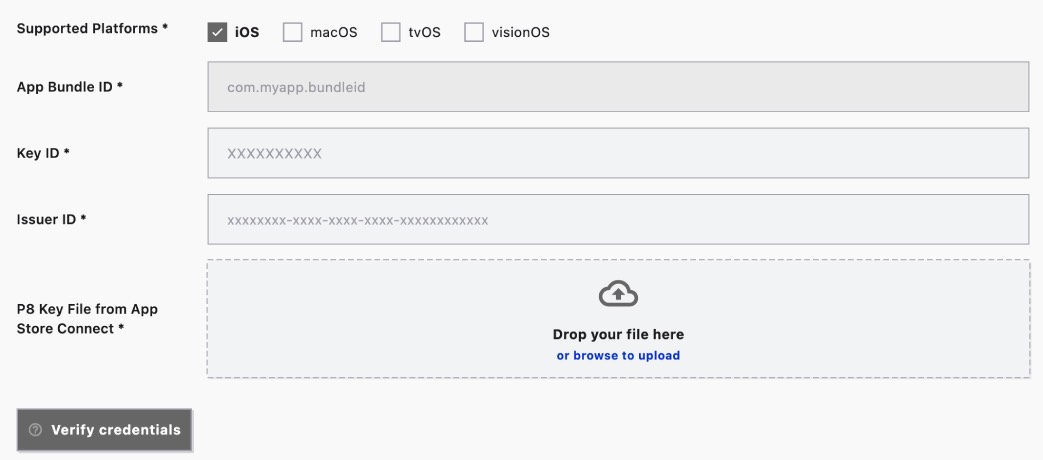
Open LaunchMaster Studio and navigate to your iOS project settings. Click the Credentials tab and fill in the three fields:
- Paste your Issuer ID
- Paste your Key ID
- Click Upload .p8 File and select the private key you downloaded
Click Verify Credentials. LaunchMaster Studio will test the connection and confirm access.
Security Best Practices
- Never share your private key or commit it to version control.
- Store the
.p8file in a secure password manager, not on your Desktop. - Rotate keys every 6 months as a precaution.
- Immediately revoke any key you suspect has been compromised — you can do this from the same Keys tab in App Store Connect.
- Apple allows a maximum of 50 active API keys per account.